Sync with your phone via Bluetooth#
SyncEvolution 1.0 alpha and above allow you to synchronize the PIM data on your SyncML-capable phone via Bluetooth. Nokia Symbian-based phones are the most common SyncML-capable phones. Contacts, calendar, todos and notes are supported, although the support is not yet complete. This has been tested with a Nokia 7210c (Symbian S40 5th edition), but it also works on other Symbian devices.
Note
If your phone is running Android or iOS, this method is not for you, since these operating systems do not natively support SyncML. After installing any (working…) SyncML-client, you can use the HTTP method for syncing. You can find more information here.
For Bluetooth synchronization, the phone must be paired with the computer. It must support SyncML (sometimes called OMA DS) over Bluetooth. Instructions for pairing depend on the host OS, for example see Bluetooth pairing with GNOME.
Graphical Synchronization UI#
After pairing, the graphical Sync UI can be used to configure synchronization:
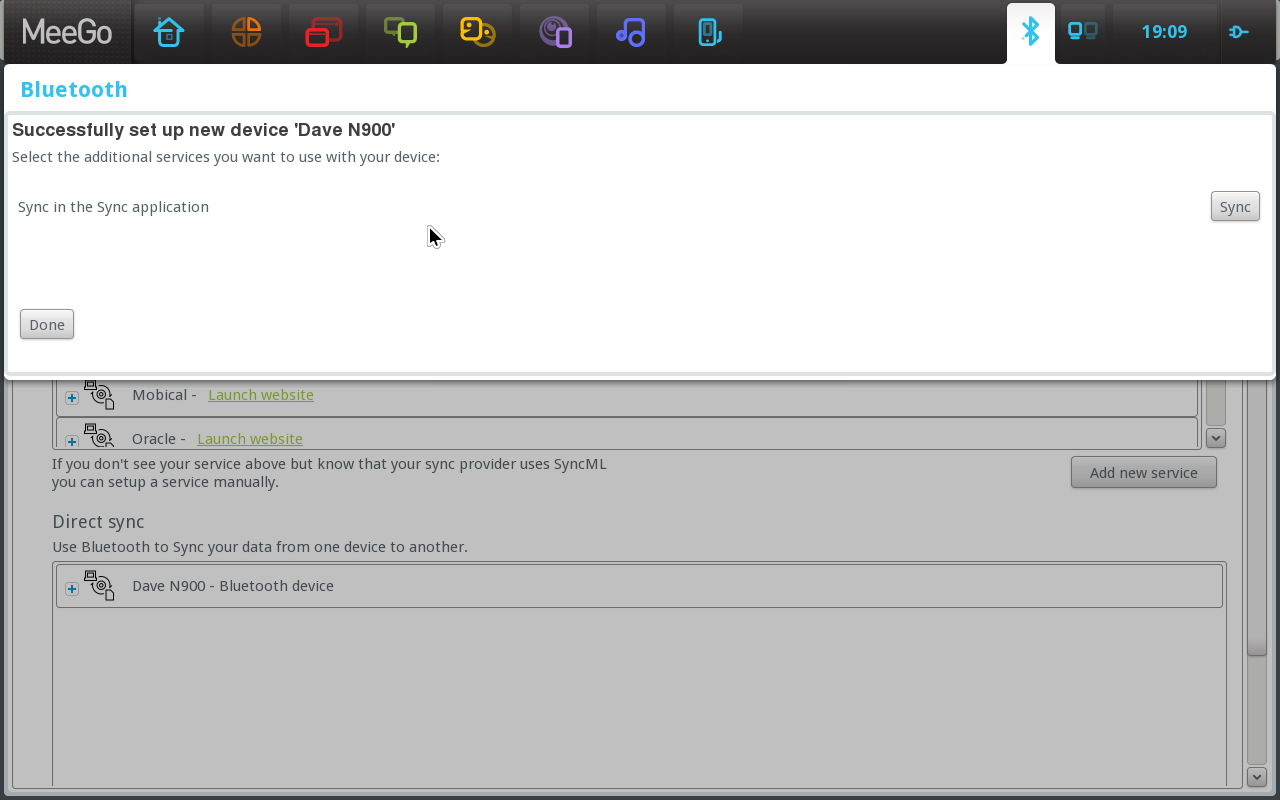
Launch the ‘Sync’ application, either from the pairing screen or from the ‘Applications’ panel.
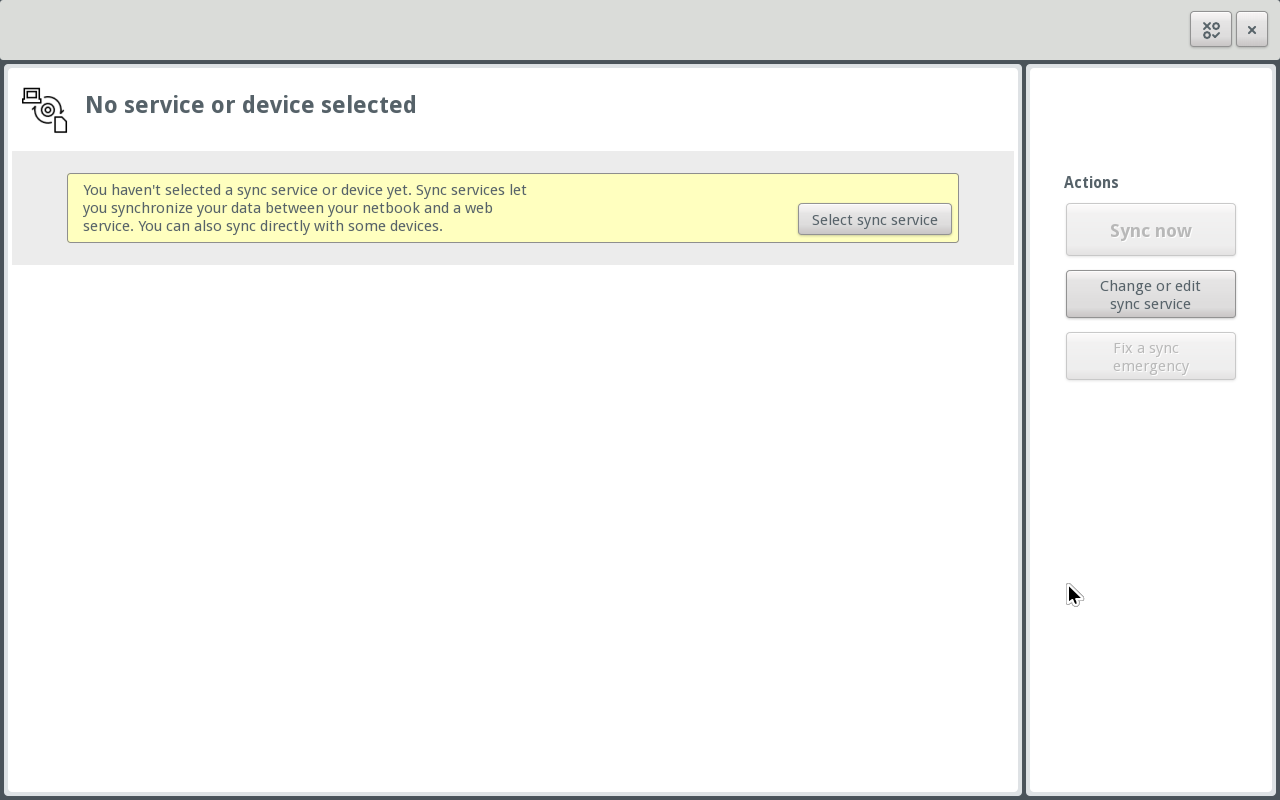
Select a service to synchronize by clicking the ‘Select sync service’ button.
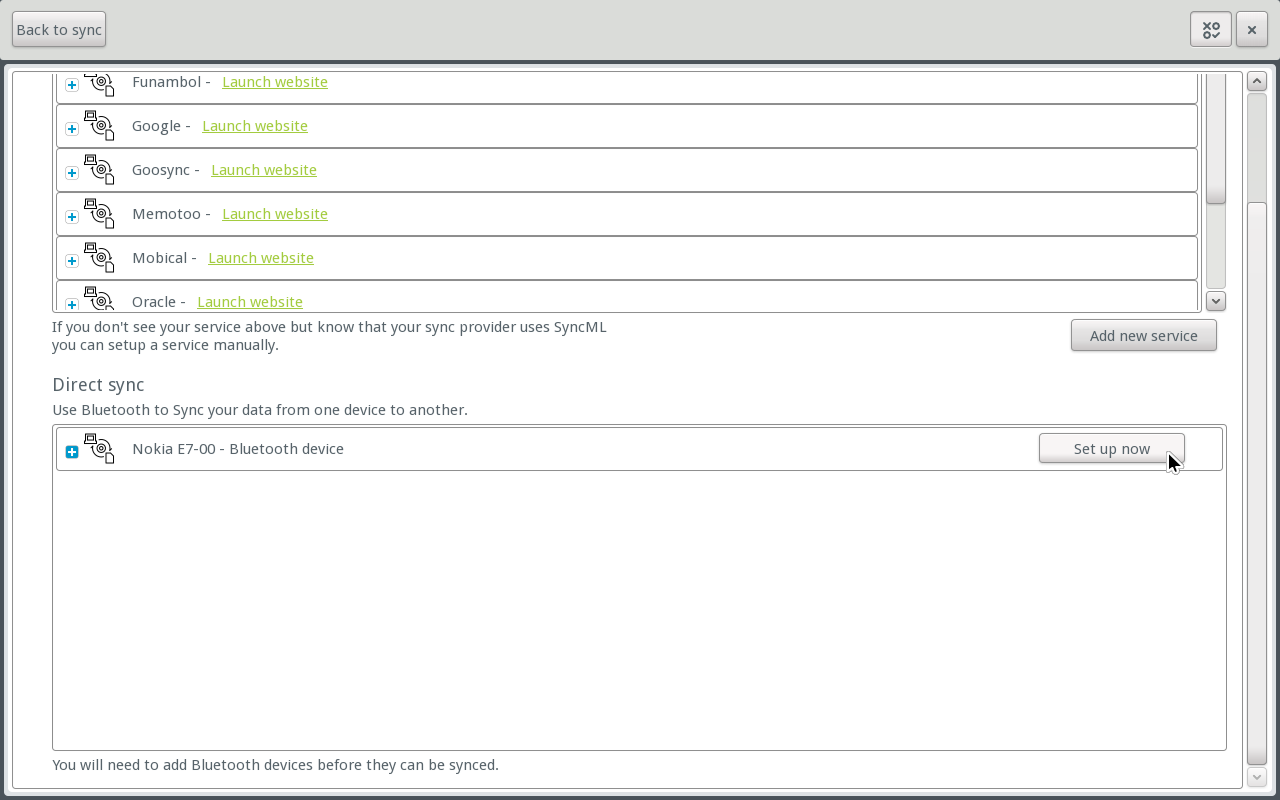
Scroll down to the ‘Direct sync’ section. Your paired Bluetooth device should be visible. Click the ‘Set up now’ button to configure synchronization.
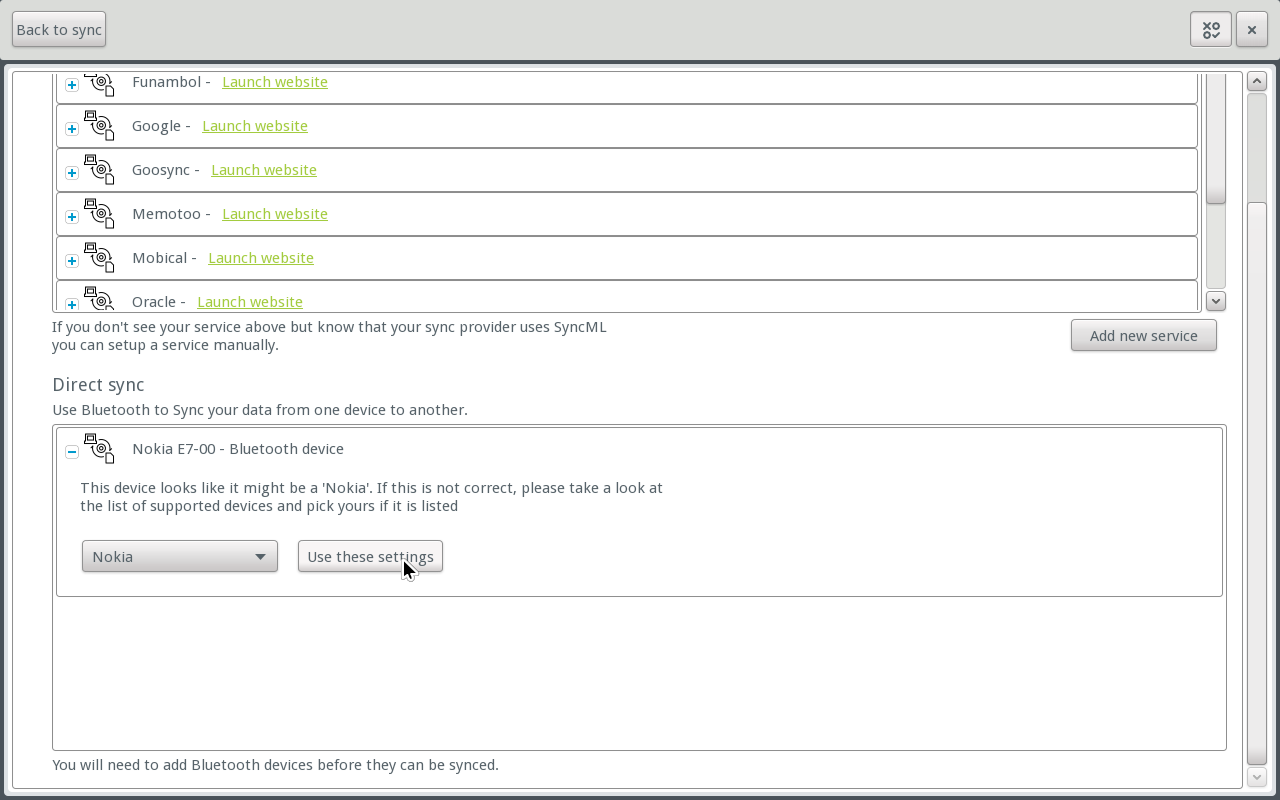
Sync suggests a configuration template, based on the Bluetooth name of your phone. Check that it is correct, changing it if necessary, and then click ‘Use these settings’. If your phone is not listed, see the instructions for creating your own template.
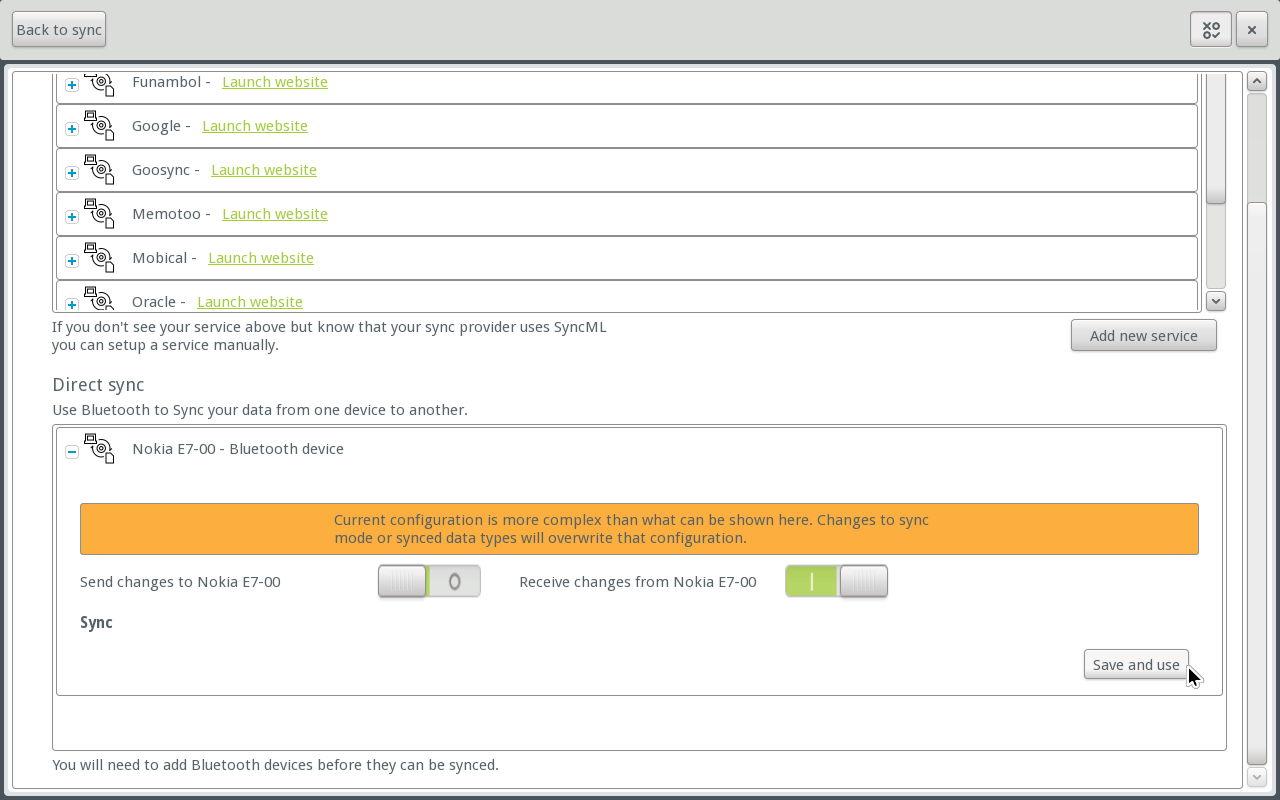
Select whether you want to send and receive items (for example, contacts, calendar appointments, and so on) to and from your phone, and then click ‘Save and use’.
You should now see the main ‘Sync’ screen, with your phone and its synchronization items listed. Click ‘Sync now’ to begin the synchronization process.
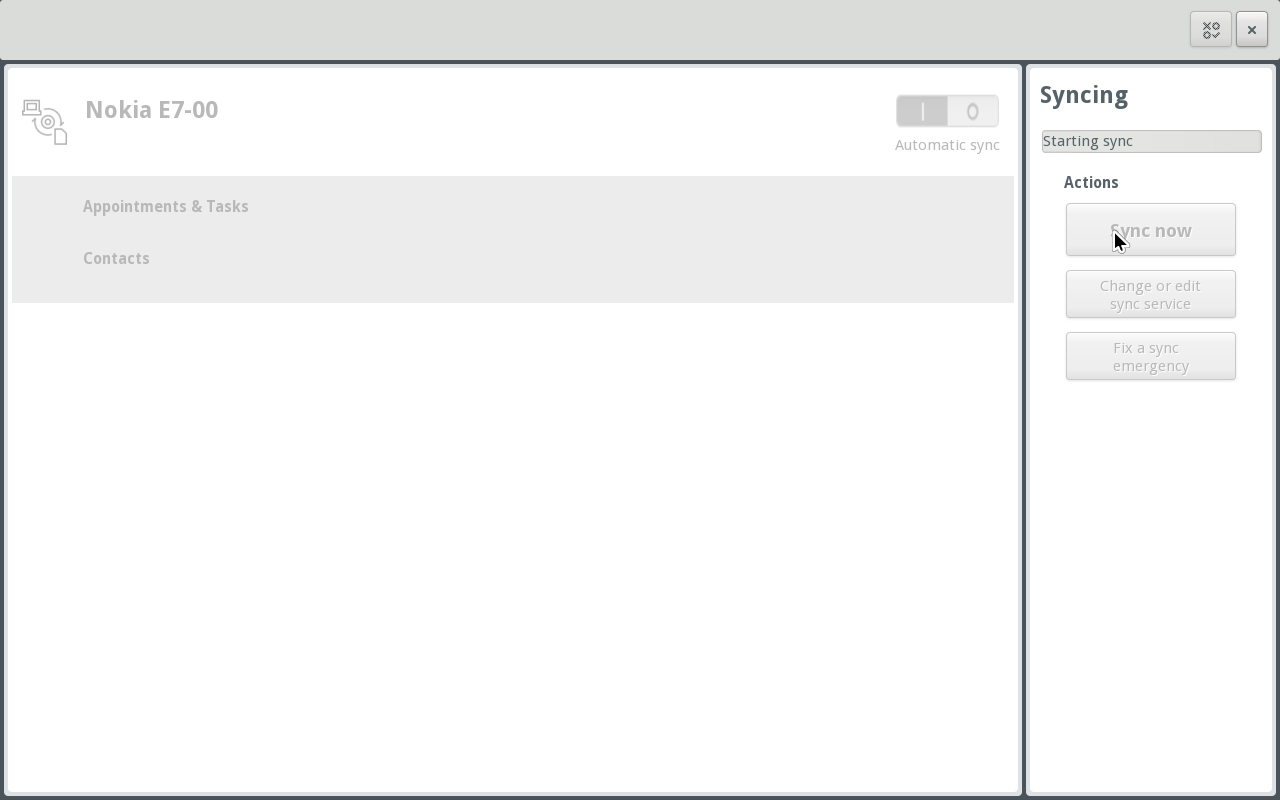
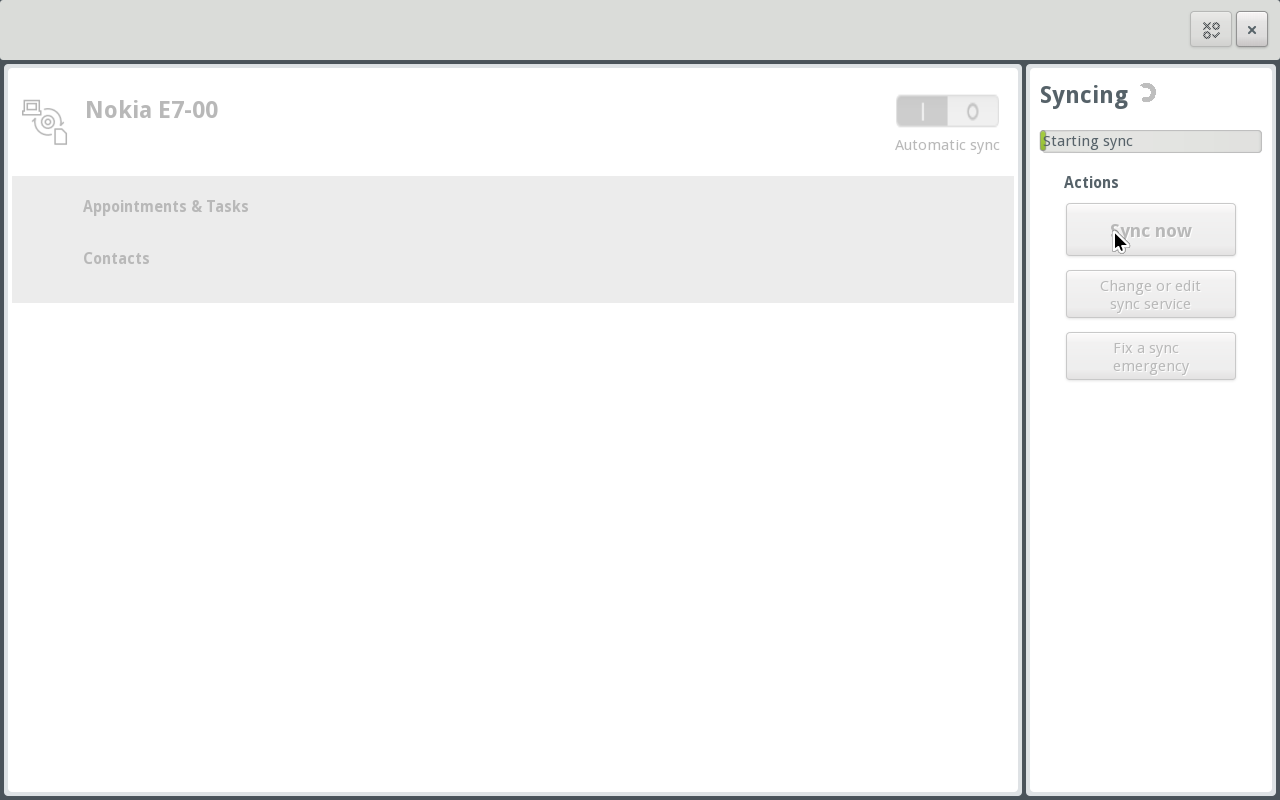
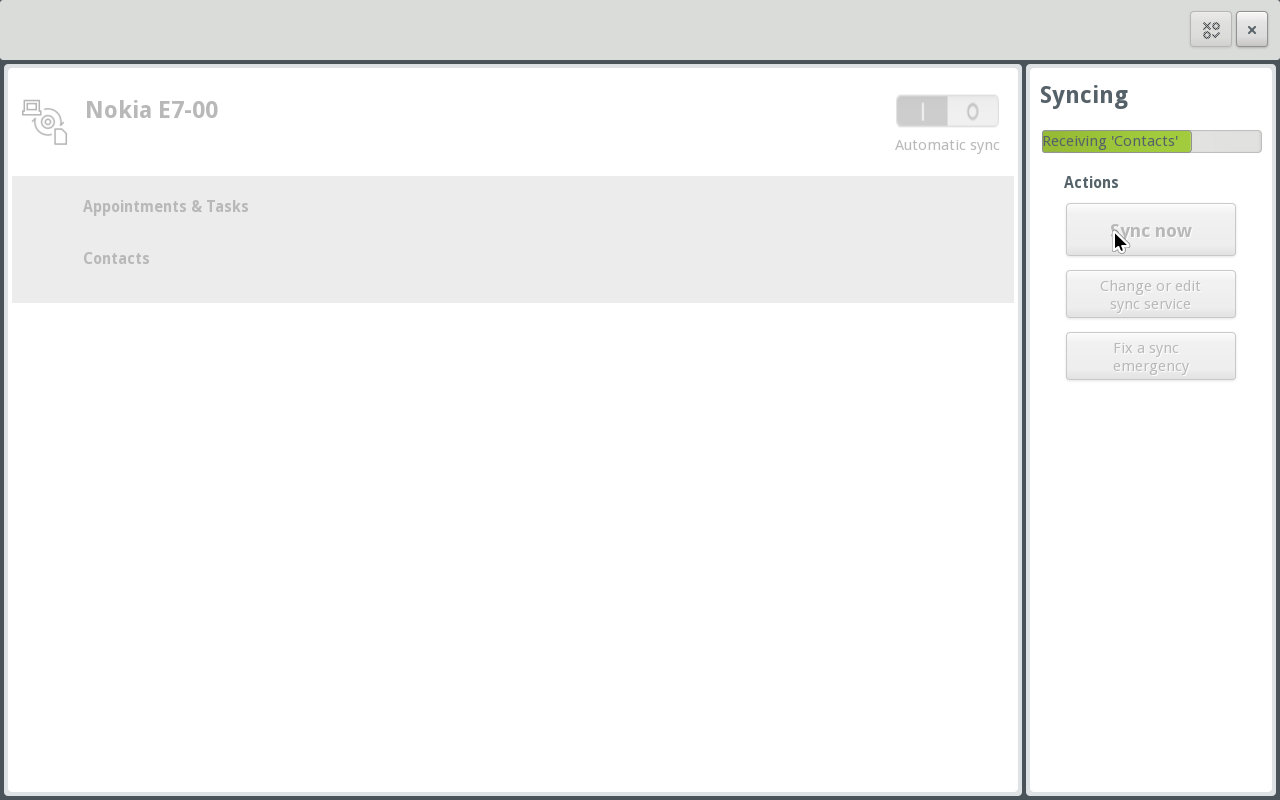
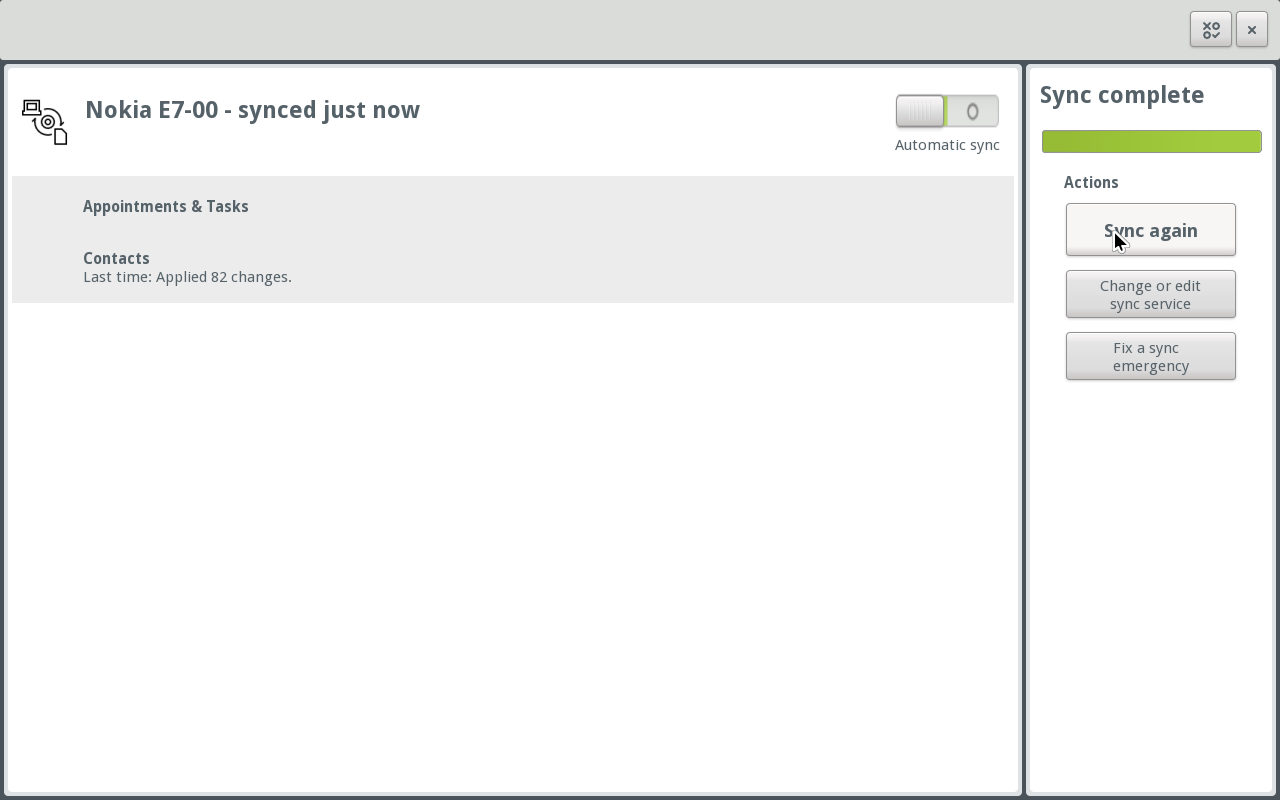
If the synchronization was successful, your selected items will appear in Evolution. If there are errors, you are given the option to edit the settings.
Command-line synchronization#
Synchronization with a Bluetooth phone can also be configured using the command-line client, as follows:
Get the Bluetooth device address, by running:
hcitool scan
This will print a list of discoverable Bluetooth devices, together with the address of each device. Find your phone in the list and set a variable for later usage. For example, use:
deviceAddress=01:23:45:67:89:01
if your device address is listed as
01:23:45:67:89:01.Choose a configuration template for your phone. SyncEvolution 1.0 beta3 and above has a bultin list of configuration templates. You can search these templates with the command:
syncevolution -l ?${matchstring}where
${matchstring}is the string that you want to search for. For example, try using the name of yur phone, the model number or the manufacturer as the match string:syncevolution -l ?Nokia
Once you have found a template that matches your phone, configure SyncEvolution to use it. For example:
syncevolution --configure --template ${template} --sync-property syncURL=obex-bt://${deviceAddress} MyPhonecreates a configuration called ‘MyPhone’ with the template ‘${template}’ for the Bluetooth device with the device address ‘${deviceAddress}’. Substitute your values for the configuration name, template name and device address.
Synchronize your phone, for example:
syncevolution MyPhone
synchronizes your phone with the configuration name
MyPhone. Substitute your configuration name forMyPhone. You will receive some informational output from SyncEvolution about the synchronization process, together with a summary at the end, which includes the number or synchronization items transferred, duration of the procedure, and so on.
Configuring a phone with no built-in template#
SyncEvolution currently has a limited set of configuration templates for
SyncML-capable phones. If a template does not exist for your phone, you can
create one with the syncevo-phone-config tool, which is part of
SyncEvolution. The tool tries to communicate with your phone and
automatically create a template.
Warning
Be aware that when invoked as below, the tool needs to wipe out the contacts, events, tasks and memos on the phone.
syncevo-phone-config should be the last resort after trying out configuration templates for related devices.
To do a thorough check, create a configuration and print a configuration template, type the following command at a terminal:
syncevo-phone-config --bt-address ${BtAddress} --advanced --create-config=${configName}
and replace ${BtAddress} with the Bluetooth address of the phone, and
${configName} with a name of your choice for the new configuration template.
If the tool succeeds, you can configure SyncEvolution to use the new template, using the same name that you chose earlier. If you wish to use the template with the graphical UI, there are additional steps before the configuration will be shown:
Create a directory for the configuration templates, if it does not already exists:
mkdir -p ~/.config/syncevolution-templates
Copy and paste the ‘Configuration template’ text into a new file in that directory, for example
~/.config/syncevolution-templates/my-template.
See a blog post with screenshots for a detailed guide.
Troubleshooting#
Check the phone’s settings: Bluetooth must be enabled and the phone must be visible.
Some phones require the user to accept the sync session via the phone’s UI. Make sure the phone’s screen is not locked and watch for messages.
hcitool scanon the computer’s command line must find the phone (see ‘Command-line synchronization’ above)sdptool search --bdaddr ${BtAddress} SYNCML(with${BtAddress}replaced by the address found in the previous step) must find a SyncML client.Example:
$ hcitool scan Scanning ...
A0:4E:04:1E:AD:30 Nokia N97
$ sdptool search --bdaddr A0:4E:04:1E:AD:30 SYNCML
Searching for SYNCML on A0:4E:04:1E:AD:30 ...
Service Name: SyncMLClient
Service RecHandle: 0x1000b
Service Class ID List:
 UUID 128: 00000002-0000-1000-8000-0002ee000002
Protocol Descriptor List:
 "L2CAP" (0x0100)
 "RFCOMM" (0x0003)
   Channel: 7 "OBEX" (0x0008)
Language Base Attr List:
  code_ISO639: 0x454e
  encoding: 0x6a
  base_offset: 0x100
Profile Descriptor List:
  "" (0x00000002-0000-1000-8000-0002ee000002)
  Version: 0x0100
If the sync fails, try the following possible solutions:
set the username and password for synchronization on your phone to be empty
restart your phone